
Two hours. That’s what a spreadsheet stole from me last Friday. My bank exports transactions as a CSV — dates backwards, store names chopped off, three columns crushed into one. Like it was designed by someone who hates me personally. I sat there copy-pasting like it was 2009. Coffee went cold. Obviously.
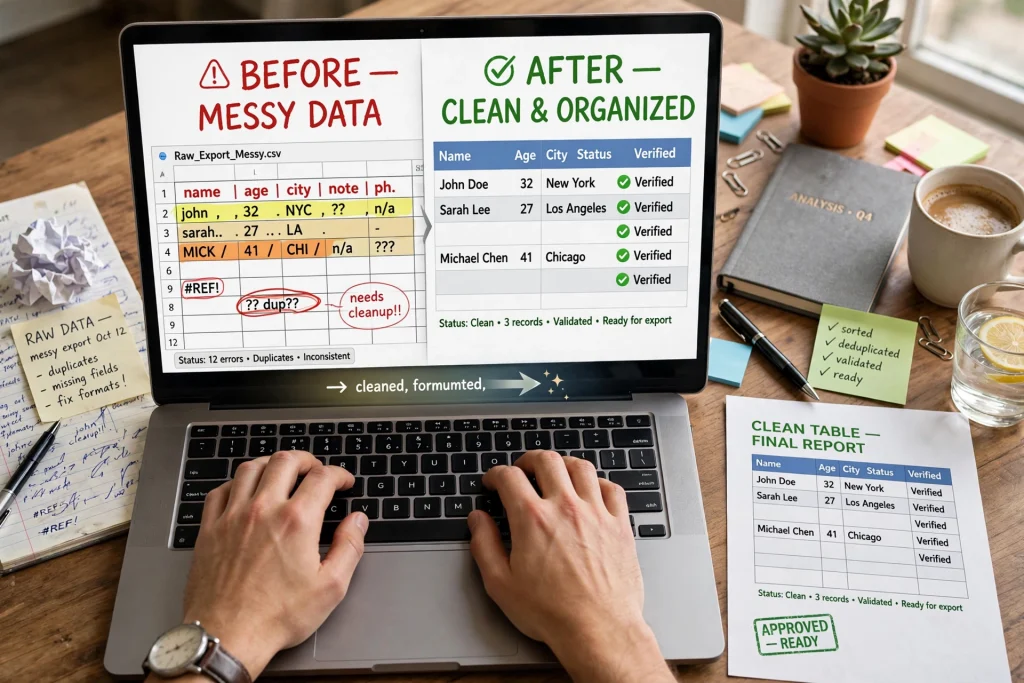
Then I remembered I could cheat. ChatGPT for Excel — that’s the whole game here. I threw the ugly mess at it, and twenty minutes later? Cleaned. Categorized. Totaled. Done.
Look, I have opinions about a lot of AI hype. Most of it deserves the skepticism. But this one actually works, and I’m not going back to the old way. Can’t.
So here are the six prompts I reach for. They’re the real ones, the ones with my coffee stains on them. Copy them, tweak them, make them yours.

TL;DR: 6 ChatGPT prompts that write Excel formulas for you — describe what you want in plain English, get back working SUMIFS, XLOOKUP, and data-cleaning formulas. Includes the one line that catches ChatGPT inventing fake functions.
Update — October 2026: I reviewed this post in October 2026, and the prompts and methods here still apply. For related reading, see the study prompts for students, the freelancer prompts, and the free AI tools list.
Using ChatGPT for Excel means describing what you want in plain English — ‘sum sales by region for Q3’ — and getting back a working formula like SUMIFS or XLOOKUP. It also cleans messy data and explains formulas you don’t understand. Always test the formula on a copy of your data first, because AI occasionally invents functions that don’t exist.
- Microsoft added a native COPILOT function to Excel in August 2025, letting users run plain-language AI prompts directly inside spreadsheet cells. — Source: GeekWire
- 76% of data analysts still use spreadsheets to clean and prepare data, spending a global average of 10.57 hours per week on data preparation (Alteryx survey). — Source: ITPro
What Does “ChatGPT for Excel” Actually Mean?
It means treating ChatGPT like your spreadsheet co-pilot. You describe the job in normal human words — “write me a formula that does this,” “clean up this mess,” “tell me which chart won’t embarrass me” — and it hands back the exact Excel formula or the clicks you need. Then you paste the result into Excel yourself. Nothing to install, nothing to break, works with whatever ancient Excel version your office gave you.
The numbers explain why this matters. An estimated 750 million people use Excel worldwide. Meanwhile, 76% of office workers say they burn up to three hours a day on manual data entry, according to a Zapier survey. And a 2026 Adobe-commissioned survey of 2,000 UK workers found 23% of people using AI at work already point it at spreadsheets and data analysis. All that boring spreadsheet labor? That’s exactly where AI pays for itself.
Getting formulas written for you
This is the one I use most. By a mile.
Last month a client sent me a mailing list — 400 full addresses crammed into a single column, stuff like “742 Evergreen Terrace, Springfield, IL 62704”. I needed just the ZIP codes. Old me would have reached for Text to Columns and made at least one mistake. New me pasted five sample rows into ChatGPT and wrote:
Column A has full addresses like “742 Evergreen Terrace, Springfield, IL 62704”. Give me a formula that pulls just the ZIP code into column B.
=RIGHT(A2,5). Done in 90 seconds. Dragged it down, walked away.
One catch, and don’t skip this: tell it your Excel version. If ChatGPT hands you an XLOOKUP and your office is still running Excel 2016, that formula just errors out and sits there mocking you. (Microsoft’s official XLOOKUP reference confirms it only exists in Microsoft 365 and Excel 2021 onward.) When I add “I’m on Excel 2019,” it sticks to formulas I can actually run.
Untangling your broken formulas
Everyone has that one monster formula. Worked Tuesday. Returns #N/A on Wednesday. You stare at it. It stares back.
Mine was a VLOOKUP that insisted the value didn’t exist. It existed. I stared for forty-five minutes — I counted — then gave up and pasted the whole thing into ChatGPT. It asked one question: do you have trailing spaces in your lookup column?
I did. One TRIM() later, fixed.
Seriously, I do this before debugging on my own now. Faster. And unlike me, ChatGPT never gets emotionally attached to a formula that’s clearly wrong.
Turning email sludge into clean tables
A vendor once sent me three paragraphs of invoice data in an email. Names, amounts, dates, all mushed together in sentences. Reformatting that by hand? That was going to eat my whole afternoon.
Instead I pasted the email text in and wrote:
Turn this into a table with columns: Vendor, Amount, Date. Give it back as comma-separated values I can paste into Excel.
It worked. Pasted the result straight into a sheet and it landed in clean columns. Same trick I use to cut my email time in half with AI, just aimed at rows and columns instead of inboxes.
Picking a chart that won’t embarrass you
Quarterly review coming up. I had twelve months of revenue by product category and no earthly idea how to show it. Bar chart? Line? One of those 3D monstrosities?
I asked:
I have monthly revenue by product category for the last 12 months. What chart shows the trend best, and what should I title it?
Stacked area chart, it said. And title the slide by the takeaway, not the data — “Software overtook services in Q3” beats “Revenue by category 2025-2026” every single time. My slide looked like somebody competent made it.
Fair warning, though: it once suggested a 3D pie chart. I have standards. Ignored.
Finally learning pivot tables
Pivot tables are the thing everyone says they’ll learn “someday.”
I said someday for six years. Six!
This prompt broke the streak:
I have 2,000 rows of sales data with columns Date, Rep, Region, Product, Amount. Walk me through building a pivot table that shows total sales by rep and region, step by step, for Excel on Windows.
Click-by-click instructions. Where to click, which field goes where, what gets dragged into “Values.” Eight minutes later I had my first pivot table and I understood every step of it. If you’ve been ducking pivot tables as long as I was, this is your way in.
Making overdue invoices glow red
I track around sixty invoices at a time, and the overdue ones used to hide in plain sight. Not anymore:
Highlight any row where the due date in column D is before today and column E is not “Paid”. Give me the exact formula and tell me where to paste it in conditional formatting.
It gave me =AND($D2<TODAY(),$E2<>”Paid”) plus the exact menu path. Pasted it in. Now overdue invoices glow red at me every morning, which is honestly the only motivation I need.
Ten seconds of setup. Saves me every single week. Genuinely one of my favorite little automations.
The one rule that makes every prompt work
Paste in a few real rows of your data. Three to five. That’s it.
Here’s why: until ChatGPT sees what your data actually looks like, it’s guessing. Every prompt above went from “eh, close enough” to copy-paste-ready the moment I included sample rows. Fake the names if you want — keep the structure real.
I taught ChatGPT to remember my usual column layouts, so these days I barely re-explain anything.
Where it trips up (so you don’t get burned)
Three honest caveats. Because no, this isn’t magic:
It invents function names.
With total confidence. No hesitation. Just a formula that looks perfect and does absolutely nothing. Burned me once. Now I test every formula on a copy of my sheet first. Ten seconds. Saves real embarrassment.
Keep your sensitive data out.
No Social Security numbers, no real customer lists. I swap in fake names in my sample rows. Assume anything you paste could stick around.
Say which app you mean.
Google Sheets formulas sometimes differ from Excel’s. Stick “for Google Sheets” or “for Excel 2019” at the start of your prompt and skip a whole category of confusion.
Frequently Asked Questions
Nope. Everything above works fine on the free tier. The paid plans get you faster responses and file uploads, but for writing formulas and cleaning tables, free is plenty. I compared the paid options here: ChatGPT Plus vs Claude Pro vs Gemini: is $20 worth it?
Not by itself. You paste in formulas or a few sample rows, and it works from that. Paid tiers accept file uploads, but I still prefer pasting text — faster, and I control exactly what data leaves my computer.
Treat it like anything you put online: assume it could end up in training data. Keep it anonymous. Swap real names, account numbers, and dollar amounts for fakes before pasting, and you’re fine.
Copilot lives inside Excel and can edit your actual file. ChatGPT works from your descriptions and pasted text. Copilot costs extra on top of Microsoft 365. This way is free — and it works in any spreadsheet app, Google Sheets included.
This week, pick ONE spreadsheet that annoys you. The expense report. The client list. The inventory tracker you update every Friday and resent a little more each time.
Run one of these prompts on it. Just one. That’s the whole assignment.
I folded this into my weekly planning routine — Friday afternoons are spreadsheet-cleanup time now, twenty minutes instead of two hours. If one prompt saves you twenty minutes this week, you’ve already won.
Save hours every week with AI
One practical tip every Tuesday — the AI tools, prompts, and workflows that actually save you time. Free, no fluff.
No spam. Unsubscribe anytime.


Pingback: ChatGPT Budgeting: 5 Prompts That Fix Your Money - Productive AI Hub