
I was explaining my job to ChatGPT for the eleventh time last month when it finally hit me: this is insane. Not the AI — me. I’d been typing “I’m a blogger who writes about AI and productivity tools for a US audience” into nearly every new chat for over a year. New chat, blank slate, another paragraph of context before the real question. A friend watched me do it once and said, “You know it can just… remember that, right?” I did not know that. If you’re still re-introducing yourself every session, meet ChatGPT Memory — it’s probably already on.
What is ChatGPT Memory?
ChatGPT Memory is a built-in feature that stores details from your conversations — your name, your work, your preferences — and reuses them later so answers fit you better. You can view, edit, or delete anything it saves, at any time.
Okay, here’s the part nobody told me clearly — and I mean nobody, not the onboarding, not the settings tooltips, nobody: ChatGPT has two different “remembering” systems. Two. And they do different things.
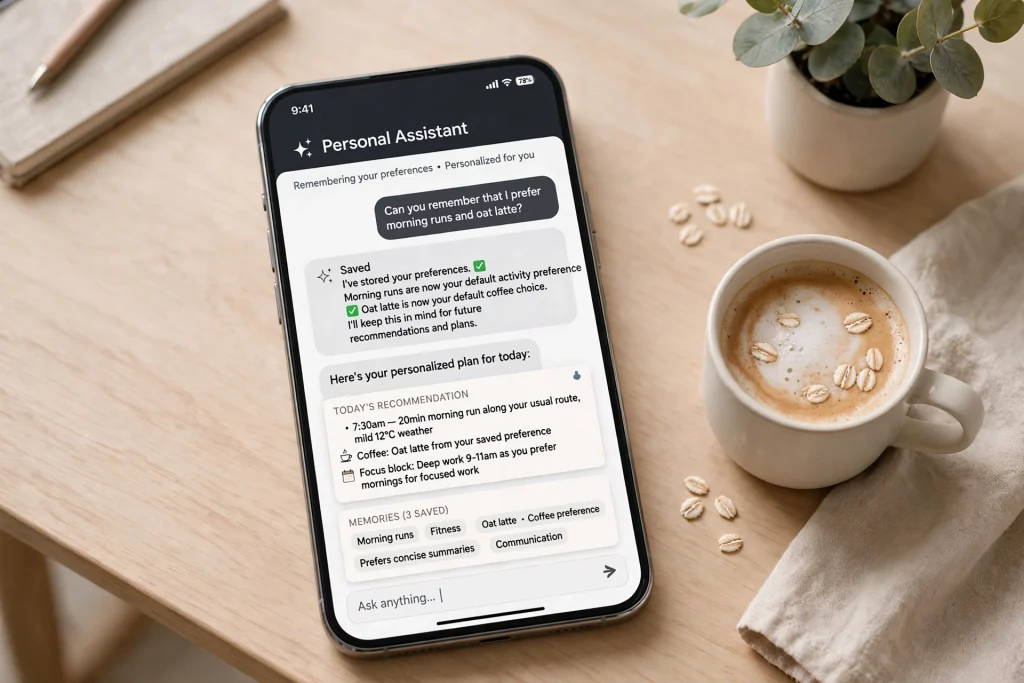
Memory is the quiet one. When it’s on, ChatGPT picks up details from your conversations and just… stores them. Your name. Your job. That you hate bullet points in emails (relatable). Whatever comes up naturally. Later it uses those memories to shape its answers. And here’s the nice part: you can see everything it’s saved. All of it. And delete any of it.
Custom Instructions are the loud, deliberate one. Two text boxes where you tell ChatGPT exactly who you are and how you want it to respond. Every chat starts with those instructions baked in. No negotiation.
Think of it this way — Memory is what a good assistant picks up about you over time. Custom Instructions are the briefing document you hand them on day one.
Both are free, by the way. Free! You don’t need a Plus subscription for either. (If you’re allergic to subscriptions in general — and honestly, who isn’t at this point — here are some free AI tools that actually compete with the paid ones.)

First, check that Memory is actually on
Open ChatGPT on the web. Click your profile picture (bottom-left) → Settings → Personalization. Find the Memory toggle. Make sure it’s on. (If the menu looks different on your screen, OpenAI’s official Memory help doc keeps screenshots of the current layout.)
That’s it. That’s the whole setup step. (Anticlimactic, I know.)
From now on, ChatGPT quietly saves useful details as you chat. But — big but — the automatic saving is hit or miss. Sometimes it remembers that I prefer short paragraphs. Sometimes it forgets my newsletter goes out on Tuesdays. So? Don’t rely on it alone. The real power move is the second system. Keep reading.
Write Custom Instructions that don’t suck
Same place: Settings → Personalization → Custom Instructions. You’ll see two boxes:
“What would you like ChatGPT to know about you?”
“How would you like ChatGPT to respond?”
Each one holds about 1,500 characters. That’s plenty. Most people need, like, 300. Tops.
Confession: my first attempt was a novel. Three paragraphs — my life story, my goals, my philosophy of productivity. Very profound. Very useless. ChatGPT basically ignored the interesting parts and latched onto the boring ones. Go figure.
What actually works? Short. Specific. Opinionated. Here’s mine, roughly:
About me: I run a blog about AI and productivity tools for a US audience. I write in first person, casual but not sloppy. My readers are busy professionals and students.
How to respond: Get to the point fast. Short paragraphs. No corporate jargon — if a sentence sounds like a press release, rewrite it. When I ask for ideas, give me 5–7, not 25. Use US spelling and dollar pricing in examples. Push back when my idea is bad; don’t just agree with everything.
See the difference? Not a biography. A style guide with teeth. That “push back when my idea is bad” line? It changed the quality of my brainstorming sessions more than any prompt trick I’ve ever tried. Seriously.
Oh — and yes, I road-tested this on the bigger projects too, like the week-planning routine I wrote about. Night and day. Truly.
Tell it the boring stuff too
The unglamorous details? That’s where Memory earns its keep. Things like:
- Your time zone — so “remind me tomorrow morning” actually means something.
- Your job title and industry — so the examples land instead of flopping.
- Tools you actually use: Notion, Gmail, Google Calendar, whatever.
- Constraints: “I have 30 minutes a day for this,” “my budget is $50/month”.
Here’s a real example. I told it I use Gmail and Google Calendar. Now, when I ask for email help, it suggests actual Gmail filters. Not generic “try organizing your inbox” advice — real, clickable, Gmail-specific filters. Small thing? Sure. Huge difference? Absolutely.
If you want the full workflow, here’s my email triage setup.
The payoff is real (and measurable)
Does any of this actually move the needle? The research says yes. In a Harvard Business School and BCG experiment, consultants using GPT-4 finished 12.2% more tasks, 25.1% faster — and their output was rated roughly 40% higher in quality. Context is leverage: the more the model knows about your real work, the sharper its answers.
And the crowd has noticed: Microsoft and LinkedIn’s 2024 Work Trend Index found that 75% of global knowledge workers already use AI on the job. The edge isn’t using AI anymore. It’s using it well.
Ask it what it remembers — then prune
Every month or so — set a reminder, you’ll forget otherwise — ask it: “What do you remember about me?”
It’ll list everything. And I promise, some of it will make you laugh. Mine once remembered that I “prefer concise responses”… directly above a memory that I “like detailed explanations with examples.” Contradictory memories. Coexisting. Very human of it, honestly.
Delete the stale stuff. Keep it current. Think junk drawer: ten minutes, twice a year, whole thing works better.
Oh, and you can nuke individual memories mid-conversation too. Just say “Forget that I work in marketing” — or whatever changed. It’ll confirm, and poof. Gone.
One thing to know before you overshare
Real talk for a second: Memory is convenient, but it’s not private in the way you might assume. Don’t put anything in Custom Instructions or Memory that you’d be upset about existing on someone else’s server. Medical details. Financial account numbers. Your Social Security number. Keep all of that out.
My rule of thumb? I treat it like telling a coworker. Fine for work context — “I’m a productivity blogger, keep it punchy” — not for secrets.
And if even that bothers you, no shame: turn Memory off entirely and use temporary chats for sensitive stuff. The option’s right there in the same settings panel.
The 10-minute setup, summarized
For the skimmers (no judgment — I am the skimmers):
- Settings → Personalization → turn Memory ON.
- Custom Instructions: who you are in 2–3 lines, how you want answers in 4–5 lines.
- Add the boring details: timezone, tools, constraints.
- Once a month, ask what it remembers and delete the junk.
Ten minutes. Once. And you never have to introduce yourself to a chatbot again.
Honestly? It feels weird the first time — it references something from three weeks ago, unprompted, and you get this little jolt. Like, how did you…? Then? It feels like the most natural thing in the world. Which is exactly what a good assistant should feel like.
Frequently asked questions
Yes. Both Memory and Custom Instructions are free for everyone — no Plus subscription needed. OpenAI has rolled Memory out to all users, so the free tier gets it too.
Go to Settings → Personalization and flip the Memory toggle off. For one-off private chats, use a temporary chat instead — nothing you type there gets saved to memory.
Yes — that’s the whole point. Memories saved in one conversation apply to new ones automatically. You can also save something on purpose by telling it directly, for example: Remember that I run a weekly newsletter.
It’s convenient, but treat it like telling a coworker — fine for work context, not for secrets. Keep medical details, financial account numbers, and ID numbers out. You can view and delete every saved memory, or switch Memory off entirely.
Save hours every week with AI
One practical tip every Tuesday — the AI tools, prompts, and workflows that actually save you time. Free, no fluff.
No spam. Unsubscribe anytime.


Pingback: ChatGPT Resumes: 9 Prompts That Actually Get Interviews
Pingback: How I Cut My Email Time in Half With AI - Productive AI Hub
Pingback: ChatGPT for Excel: 6 Prompts That Do Your Work - Productive AI Hub
Pingback: ChatGPT for Students: 7 Study Prompts That Work - Productive AI Hub
Pingback: ChatGPT for Job Interviews: 6 Prep Prompts That Work
Pingback: AI Presentation Makers: 7 Tools That Build Decks for You
Pingback: NotebookLM: Google's Free AI That Reads Documents