
I checked my email 47 times on a Tuesday last month. Yes, I counted. By 6 p.m. I had nothing to show for it except a vague sense of busyness — and three important messages I’d completely missed.
Here’s the thing: it wasn’t a discipline problem. I get around 80 emails a day — client stuff, newsletters I should’ve unsubscribed from years ago, school updates for my kid, receipts I’ll never look at again. Nobody can out-willpower that kind of volume. So I stopped trying and built a system instead.
Six weeks in, I’m spending about 40 minutes a day on email instead of 90, and I’m missing fewer things, not more. This is the exact system. No 47-step framework, no app that costs $50 a month. Just what works.
TL;DR: I went from 90 to 40 minutes a day on email using a 4-part AI system — morning triage, AI drafting, thread summaries, and weekly action extraction. No new apps required; works with Gmail, Outlook, or plain ChatGPT. The copy-paste prompts below are the whole system.
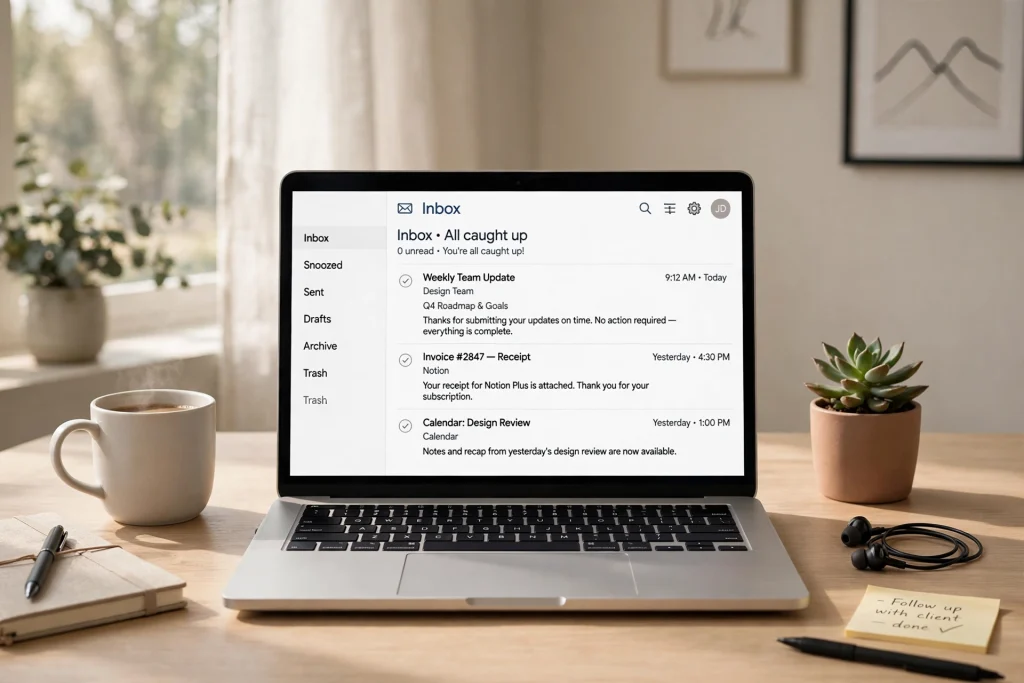
AI email management is the practice of using artificial intelligence to triage, draft, and summarize your inbox — tools like Gmail’s Gemini, Shortwave, or ChatGPT that sort messages by urgency, write replies in your voice, and condense long threads into bullet points. The goal isn’t a fancier inbox; it’s spending under 30 minutes a day on email instead of three hours.
- The average professional handles about 121 business emails per day and spends roughly 2.5 hours managing their inbox. — Source: SQ Magazine
- Around 28% of the workweek goes to email — about 13 hours per week for the average knowledge worker. — Source: SQ Magazine
What is AI email triage?
AI email triage means letting an AI assistant sort your inbox before you touch it — grouping messages into ‘reply today,’ ‘can wait,’ and ‘noise’ — so you spend your time answering instead of deciding what to answer. Most people find 30–40% of their inbox is archivable noise, removable in about two minutes.
Why this matters: the research on email overload is sobering — studies consistently find knowledge workers lose a huge chunk of their week to inbox management, and interruptions take far longer to recover from than you’d expect. Triage isn’t just tidy. It’s plugging a real leak.
Sort first, reply later
Most email advice fails for the same reason: it tells you to “just answer everything.” So you open the first unread message, write a careful reply, then the next one, and suddenly it’s 11 a.m. and you’ve done nothing but react.
Do the opposite. First thing, I open my inbox and sort — no replying allowed. In Gmail, I open the Gemini side panel (the little star icon in the top right) and type: “Summarize my unread emails in three groups: needs a reply today, can wait, and noise.” It does this surprisingly well. The noise — promos, newsletters, automated receipts — gets archived in one click. That’s usually 30 to 40 percent of my inbox, gone in about two minutes.
COPY-PASTE TRIAGE PROMPT:
Summarize my unread emails in three groups: needs a reply today, can wait, and noise. For each email in 'needs a reply today,' give me a one-line summary.Outlook users can ask Copilot to “summarize my inbox” the same way. If you’re on Apple Mail, copying a handful of emails into ChatGPT is clunkier but works. The point isn’t which tool you use. It’s the order of operations: decide what matters before you touch a single reply. Ten minutes of triage up front saves you from spending an hour writing polite responses to emails that never needed responses.
Let AI draft it — you stay the editor
This is where people get AI email wrong in both directions. Some refuse to touch it (“it sounds robotic!”). Others let it fire off messages unchecked — a friend of mine once let an assistant send “per my last email” to a client, which did not go well. The sweet spot is in the middle: AI drafts, you edit.
For anything routine — confirming a time, thanking someone, asking for a document — I dictate two or three rough sentences into ChatGPT or Gemini and say: “Turn this into a short professional email, friendly tone, under 80 words.” The draft takes five seconds. I spend 30 seconds fixing it. Compare that with the four minutes of staring at a blank compose window I used to do.
COPY-PASTE DRAFTING PROMPT:
Turn this into a short professional email, friendly tone, under 80 words: [paste your rough sentences here]
Does it sound like me? After a month, close enough that nobody’s noticed — because I review every line before it goes out. I use ChatGPT for this kind of drafting constantly — emails, meeting notes, even resume rewrites — and the pattern is always the same: AI does the typing, you keep the judgment.
That line matters most for sensitive stuff. If an email involves money, hiring, firing, or anyone’s feelings, write it yourself. AI handles the logistics; you handle the humans — which is why teaching ChatGPT how you like things done pays off.
Stop reading long threads — summarize them
Somebody CCs you on a 23-message thread titled “Re: Re: Re: Re: Q3 planning.” What do you do? If you’re me circa 2024, you read all 23 messages and lose 20 minutes you’ll never get back.
Now I highlight the thread and ask for a summary: the decisions made, and anything being asked of me specifically. Gmail’s Gemini panel does this with “summarize this thread.” Shortwave, the email client I actually switched to for my personal account, does it natively and well. Copilot has caught up on the Outlook side. Honestly, use whichever matches the email you already have — switching clients is a whole project, and it’s not worth it for most people.
COPY-PASTE THREAD SUMMARY PROMPT:
Summarize this email thread: what decisions were made, what deadlines were mentioned, and is anything being asked of me specifically?One caveat, and it’s a real one: AI summaries miss tone. A summary might say “the team agreed to push the deadline” without mentioning that the client was furious about it. For threads that smell like conflict, read the actual emails. Summaries are for information, not for politics.
Get the actions out of the inbox
The final piece: anything email asks me to do goes somewhere that isn’t email. Most Fridays, I ask AI: “Look at this week’s important emails and list every task or deadline mentioned.” Then I move those into my planner. I go deeper on the whole weekly-planning ritual in my guide to planning your whole week with ChatGPT in 20 minutes, but the email version takes five minutes, and it’s the reason things stopped slipping through the cracks.
Why not just leave tasks in the inbox? Because the inbox is a to-do list designed by other people, sorted by whenever they felt like emailing. That’s a terrible system. Pull the actions out, into a list you control, and email stops feeling like a second job.
The tools, ranked honestly
Since someone will ask — here’s my honest take on the main options:
| Tool | Price | Best for | AI standout |
|---|---|---|---|
| Gmail + Gemini | $20/mo Google AI plan | Easiest win for Gmail users | Summaries, drafts, AI search in side panel |
| Shortwave | Free 90 days, then $9/mo | Smartest standalone client | Native AI search (“find the email where Sarah sent the contract”) |
| Superhuman | $30/mo | Email-heavy roles (sales, recruiting) | Fast AI drafting, speed |
| Outlook + Copilot | Included in most MS 365 business plans | Microsoft shops | Draft coaching — rewrites for clarity |
| Plain ChatGPT | Free | Any inbox, no IT approval needed | Copy-paste drafting and summarizing |
Prices as of October 2026.
Gmail + Gemini — easiest win
If you already live in Gmail, this is the one. The side panel summarizes, drafts, and searches like a bloodhound. It costs $20/month for the Google AI plan, and it occasionally mixes up details between threads — always double-check names and dates. For most people, this is all you need.
Shortwave — smartest client
Free for 90 days, then $9/month. Shortwave, the email client I actually switched to, is my pick if you want intelligence baked into the client itself rather than bolted on. Its AI search is genuinely impressive — “find the email where Sarah sent the contract” just works. The downside is real though: it’s a separate app, so there’s switching friction.
Superhuman — fast, beautiful, overpriced
Thirty dollars a month. The AI drafting is excellent and the whole thing is fast. But unless email is a core job function — sales, recruiting, support — you won’t get $30 of value out of it. I tried it for a month. Went back.
Outlook + Copilot — solid for Microsoft people
Included in most Microsoft 365 business plans. Copilot’s standout feature is “draft coaching” — it rewrites your email to be clearer before you send. If you’re already in the Microsoft world, good news. Don’t buy 365 just for this, though.
Plain old ChatGPT — the free workaround
Don’t overlook the obvious. Copy-pasting emails into a chat window is clunky, but the free tier handles drafting and summarizing surprisingly well — it’s one of several free AI tools that genuinely compete with paid ones. If your workplace blocks AI features inside email, this is the workaround that doesn’t need IT approval.
What AI still gets wrong
A few honest warnings, because they’re not dealbreakers but you should know them. AI is bad at knowing what’s urgent to you specifically — a one-liner from your boss saying “call me” looks trivial to an algorithm. It occasionally blends details between threads, especially names and dates, so verify those before you forward a summary. And it has zero read on office politics, which is why I keep it away from sensitive replies. Go in with your eyes open and you’ll be fine.
Your first week, simplified
Don’t adopt all of this at once. Here’s the on-ramp I’d give a friend:
Days 1–2: Just do the morning triage. Archive the noise, flag what matters. Nothing else changes.
Days 3–4: Add AI drafting for the routine replies — confirmations, thank-yous, follow-ups. The easy ones.
Day 5 and on: Start summarizing long threads instead of reading them. Friday, run the weekly action-list extraction once.
That’s it. Hate any piece? Drop it. The system works fine with three of the four.
Frequently Asked Questions
After a few weeks of editing its drafts, close enough that nobody notices — because you review every line before sending. The AI does the typing; you keep the judgment.
For work email on Google/Microsoft, you’re already trusting those companies with your mail. Keep financial details and truly sensitive threads out of AI summaries regardless.
Whichever matches the inbox you already have. Gemini for Gmail, Copilot for Outlook, plain ChatGPT as the free workaround anywhere. Switching clients just for AI isn’t worth it.
Anything involving money, hiring, firing, or feelings. AI handles logistics; you handle humans.
The bottom line
My inbox isn’t empty. It’s never going to be empty, and honestly I’ve stopped chasing inbox zero — it’s a vanity metric. What matters is that email went from running my day to taking up 40 minutes of it. The tools did the heavy lifting, but the real change was the system: sort first, draft with AI, summarize the threads, pull the actions out. Try it for a week and count your own Tuesday. I’d bet the number surprises you.
Updated October 2026: re-checked every tool and price above — the system still runs on the same four steps.
Save hours every week with AI
One practical tip every Tuesday — the AI tools, prompts, and workflows that actually save you time. Free, no fluff.
No spam. Unsubscribe anytime.


Pingback: I Let ChatGPT Plan My Dinners for a Week - Productive AI Hub
Pingback: Plan Your Whole Week With ChatGPT in 20 Minutes - Productive AI Hub
Pingback: AI Meeting Notes: Otter vs Fireflies vs Fathom vs Granola - Productive AI Hub
Pingback: AI Presentation Makers: 7 Tools That Build Decks for You
Pingback: ChatGPT for Excel: 6 Prompts That Do Your Work - Productive AI Hub